Showing posts with label Windows Tricks. Show all posts

Friday, May 22, 2015

Top 10 reasons why Computers, Laptop crash which U must Know


10 reasons why PCs crash U must Know

1 Hardware conflict

The number one reason why Windows crashes is hardware conflict. Each hardware device communicates to other devices through an interrupt request channel (IRQ). These are supposed to be unique for each device.

For example, a printer usually connects internally on IRQ 7. The keyboard usually uses IRQ 1 and the floppy disk drive IRQ 6. Each device will try to hog a single IRQ for itself.

If there are a lot of devices, or if they are not installed properly, two of them may end up sharing the same IRQ number. When the user tries to use both devices at the same time, a crash can happen. The way to check if your computer has a hardware conflict is through the following route:

Start-Settings-Control Panel-System-Device Manager.

Often if a device has a problem a yellow '!' appears next to its description in the Device Manager. Highlight Computer (in the Device Manager) and press Properties to see the IRQ numbers used by your computer. If the IRQ number appears twice, two devices may be using it.

Sometimes a device might share an IRQ with something described as 'IRQ holder for PCI steering'. This can be ignored. The best way to fix this problem is to remove the problem device and reinstall it.

Sometimes you may have to find more recent drivers on the internet to make the device function properly. A good resource is www.driverguide.com. If the device is a soundcard, or a modem, it can often be fixed by moving it to a different slot on the motherboard (be careful about opening your computer, as you may void the warranty).

When working inside a computer you should switch it off, unplug the mains lead and touch an unpainted metal surface to discharge any static electricity.

To be fair to Mcft, the problem with IRQ numbers is not of its making. It is a legacy problem going back to the first PC designs using the IBM 8086 chip. Initially there were only eight IRQs. Today there are 16 IRQs in a PC. It is easy to run out of them. There are plans to increase the number of IRQs in future designs.

2 Bad Ram

Ram (random-access memory) problems might bring on the blue screen of death with a message saying Fatal Exception Error. A fatal error indicates a serious hardware problem. Sometimes it may mean a part is damaged and will need replacing.

But a fatal error caused by Ram might be caused by a mismatch of chips. For example, mixing 70-nanosecond (70ns) Ram with 60ns Ram will usually force the computer to run all the Ram at the slower speed. This will often crash the machine if the Ram is overworked.

One way around this problem is to enter the BIOS settings and increase the wait state of the Ram. This can make it more stable. Another way to troubleshoot a suspected Ram problem is to rearrange the Ram chips on the motherboard, or take some of them out. Then try to repeat the circumstances that caused the crash. When handling Ram try not to touch the gold connections, as they can be easily damaged.

Parity error messages also refer to Ram. Modern Ram chips are either parity (ECC) or non parity (non-ECC). It is best not to mix the two types, as this can be a cause of trouble.

EMM386 error messages refer to memory problems but may not be connected to bad Ram. This may be due to free memory problems often linked to old Dos-based programmes.

3 BIOS settings

Every motherboard is supplied with a range of chipset settings that are decided in the factory. A common way to access these settings is to press the F2 or delete button during the first few seconds of a boot-up.

Once inside the BIOS, great care should be taken. It is a good idea to write down on a piece of paper all the settings that appear on the screen. That way, if you change something and the computer becomes more unstable, you will know what settings to revert to.

A common BIOS error concerns the CAS latency. This refers to the Ram. Older EDO (extended data out) Ram has a CAS latency of 3. Newer SDRam has a CAS latency of 2. Setting the wrong figure can cause the Ram to lock up and freeze the computer's display.

Mcft Windows is better at allocating IRQ numbers than any BIOS. If possible set the IRQ numbers to Auto in the BIOS. This will allow Windows to allocate the IRQ numbers (make sure the BIOS setting for Plug and Play OS is switched to 'yes' to allow Windows to do this.).

4 Hard disk drives

After a few weeks, the information on a hard disk drive starts to become piecemeal or fragmented. It is a good idea to defragment the hard disk every week or so, to prevent the disk from causing a screen freeze. Go to

-- Start-Programs-Accessories-System Tools-Disk Defragmenter

This will start the procedure. You will be unable to write data to the hard drive (to save it) while the disk is defragmenting, so it is a good idea to schedule the procedure for a period of inactivity using the Task Scheduler.

The Task Scheduler should be one of the small icons on the bottom right of the Windows opening page (the desktop).

Some lockups and screen freezes caused by hard disk problems can be solved by reducing the read-ahead optimisation. This can be adjusted by going to

-- Start-Settings-Control Panel-System Icon-Performance-File System-Hard Disk.

Hard disks will slow down and crash if they are too full. Do some housekeeping on your hard drive every few months and free some space on it. Open the Windows folder on the C drive and find the Temporary Internet Files folder. Deleting the contents (not the folder) can free a lot of space.

Empty the Recycle Bin every week to free more space. Hard disk drives should be scanned every week for errors or bad sectors. Go to

-- Start-Programs-Accessories-System Tools-ScanDisk

Otherwise assign the Task Scheduler to perform this operation at night when the computer is not in use.

5 Fatal OE exceptions and VXD errors

Fatal OE exception errors and VXD errors are often caused by video card problems.

These can often be resolved easily by reducing the resolution of the video display. Go to

-- Start-Settings-Control Panel-Display-Settings

Here you should slide the screen area bar to the left. Take a look at the colour settings on the left of that window. For most desktops, high colour 16-bit depth is adequate.

If the screen freezes or you experience system lockups it might be due to the video card. Make sure it does not have a hardware conflict. Go to

-- Start-Settings-Control Panel-System-Device Manager

Here, select the + beside Display Adapter. A line of text describing your video card should appear. Select it (make it blue) and press properties. Then select Resources and select each line in the window. Look for a message that says No Conflicts.

If you have video card hardware conflict, you will see it here. Be careful at this point and make a note of everything you do in case you make things worse.

The way to resolve a hardware conflict is to uncheck the Use Automatic Settings box and hit the Change Settings button. You are searching for a setting that will display a No Conflicts message.

Another useful way to resolve video problems is to go to

-- Start-Settings-Control Panel-System-Performance-Graphics

Here you should move the Hardware Acceleration slider to the left. As ever, the most common cause of problems relating to graphics cards is old or faulty drivers (a driver is a small piece of software used by a computer to communicate with a device).

Look up your video card's manufacturer on the internet and search for the most recent drivers for it.

6 Viruses

Often the first sign of a virus infection is instability. Some viruses erase the boot sector of a hard drive, making it impossible to start. This is why it is a good idea to create a Windows start-up disk. Go to

-- Start-Settings-Control Panel-Add/Remove Programs

Here, look for the Start Up Disk tab. Virus protection requires constant vigilance.

A virus scanner requires a list of virus signatures in order to be able to identify viruses. These signatures are stored in a DAT file. DAT files should be updated weekly from the website of your antivirus software manufacturer.

An excellent antivirus programme is McAfee VirusScan by Network Associates . Another is Norton AntiVirus 2000, made by Symantec.

7 Printers

The action of sending a document to print creates a bigger file, often called a postscript file.

Printers have only a small amount of memory, called a buffer. This can be easily overloaded. Printing a document also uses a considerable amount of CPU power. This will also slow down the computer's performance.

If the printer is trying to print unusual characters, these might not be recognised, and can crash the computer. Sometimes printers will not recover from a crash because of confusion in the buffer. A good way to clear the buffer is to unplug the printer for ten seconds. Booting up from a powerless state, also called a cold boot, will restore the printer's default settings and you may be able to carry on.

8 Software

A common cause of computer crash is faulty or badly-installed software. Often the problem can be cured by uninstalling the software and then reinstalling it. Use Norton Uninstall or Uninstall Shield to remove an application from your system properly. This will also remove references to the programme in the System Registry and leaves the way clear for a completely fresh copy.

The System Registry can be corrupted by old references to obsolete software that you thought was uninstalled. Use Reg Cleaner by Jouni Vuorio to clean up the System Registry and remove obsolete entries. It works on Windows 95, Windows 98, Windows 98 SE (Second Edition), Windows Millennium Edition (ME), NT4 and Windows 2000.

Read the instructions and use it carefully so you don't do permanent damage to the Registry. If the Registry is damaged you will have to reinstall your operating system. Reg Cleaner can be obtained from www.jv16.org

Often a Windows problem can be resolved by entering Safe Mode. This can be done during start-up. When you see the message "Starting Windows" press F4. This should take you into Safe Mode.

Safe Mode loads a minimum of drivers. It allows you to find and fix problems that prevent Windows from loading properly.

Sometimes installing Windows is difficult because of unsuitable BIOS settings. If you keep getting SUWIN error messages (Windows setup) during the Windows installation, then try entering the BIOS and disabling the CPU internal cache. Try to disable the Level 2 (L2) cache if that doesn't work.

Remember to restore all the BIOS settings back to their former settings following installation.

9 Overheating

Central processing units (CPUs) are usually equipped with fans to keep them cool. If the fan fails or if the CPU gets old it may start to overheat and generate a particular kind of error called a kernel error. This is a common problem in chips that have been overclocked to operate at higher speeds than they are supposed to.

One remedy is to get a bigger better fan and install it on top of the CPU.

CPU problems can often be fixed by disabling the CPU internal cache in the BIOS. This will make the machine run more slowly, but it should also be more stable.

10 Power supply problems
With all the new construction going on around the country the steady supply of electricity has become disrupted. A power surge or spike can crash a computer as easily as a power cut.

If this has become a nuisance for you then consider buying a uninterrupted power supply (UPS). This will give you a clean power supply when there is electricity, and it will give you a few minutes to perform a controlled shutdown in case of a power cut.

It is a good investment if your data are critical, because a power cut will cause any unsaved data to be lost.
Read more

Saturday, November 29, 2014

Definitions of Virus, 3G,SIM, 3GP, MP4, pdf, DVD, CRT, HTTP, TCP, GPRS etc

* VIRUS - Vital Information Resource UnderSeized.
* 3G -3rd Generation.
* GSM - Global System for Mobile Communication.
* CDMA - Code Divison Multiple Access.
* UMTS - Universal MobileTelecommunication System.
* SIM - Subscriber Identity Module .
* AVI = Audio Video Interleave
* RTS = Real Time Streaming
* SIS = Symbian OS Installer File
* AMR = Adaptive Multi-Rate Codec
* JAD = Java Application Descriptor
* JAR = Java Archive
* JAD = Java Application Descriptor
* 3GPP = 3rd Generation Partnership Project
* 3GP = 3rd Generation Project
* MP3 = MPEG player lll
* MP4 = MPEG-4 video file
* AAC = Advanced Audio Coding
* GIF= Graphic Interchangeable Format
* JPEG = Joint Photographic Expert Group
* BMP = Bitmap
* SWF = Shock Wave Flash
* WMV = Windows Media Video
* WMA = Windows Media Audio
* WAV = Waveform Audio
* PNG = Portable Network Graphics
* DOC = Document (MicrosoftCorporation)
* PDF = Portable Document Format
* M3G = Mobile 3D Graphics
* M4A = MPEG-4 Audio File
* NTH = Nokia Theme (series 40)
* THM = Themes (Sony Ericsson)
* MMF = Synthetic Music Mobile Application File
* NRT = Nokia Ringtone
* XMF = Extensible Music File
* WBMP = Wireless Bitmap Image
* DVX = DivX Video
* HTML = Hyper Text Markup Language
* WML = Wireless Markup Language
* CD -Compact Disk.
* DVD - Digital Versatile Disk.
* CRT - Cathode Ray Tube.
* DAT - Digital Audio Tape.
* DOS - Disk Operating System.
* GUI -Graphical User Interface.
* HTTP - Hyper Text Transfer Protocol.
* IP - Internet Protocol.
* ISP - Internet Service Provider.
* TCP - Transmission Control Protocol.
* UPS - Uninterruptible Power Supply.
* HSDPA - High Speed Downlink PacketAccess.
* EDGE - Enhanced Data Rate for GSM[GlobalSystem for Mobile Communication] Evolution.
* VHF - Very High Frequency.
* UHF - Ultra High Frequency.
* GPRS - General PacketRadio Service.
* WAP - Wireless ApplicationProtocol.
* TCP - Transmission ControlProtocol .
* ARPANET - Advanced Research Project Agency Network.
* IBM - International Business Machines.
* HP - Hewlett Packard.
* AM/FM - Amplitude/ Frequency Modulation.
* WLAN - Wireless Local Area Network
Read more

Best Email Security Tips For Internet Users 2014 2015

Internet email security tips
1. Enable two step verification in you Email accounts.
2. Enable Login-notification for you email and get notification in your mobile whenever you login.
3. Set a strong password with a mix of alphabets, numbers and special charecters.
4. Enable login- notification for you facebook accounts to prevent unauthorised access.
5. Enable HTTPS in your email sttings annd your facebook account settings.
6. Never share your password with anyone. Even to your closest person.
7. Setup a recovery question which is difficult to answer and never setup an easy & guessable answer to your security question.
8. Never click on any links sent through mail or chat. It may be a link which can steal your cookie or inject any viruses.
9. Always check your address bar for proper website address before logging in.


Visit 99LocalAds.com for best deals in your city
Read more

Sunday, March 17, 2013

how to keep your laptop running smooth and fast


Other tricks are :

Go to run and type %temp%
Press ok and delete all the temp files

Defragment all the disk.
Don't know how to defragment ?

Go to my computer
right click
click properties and then on tools tab
click defragment.

Defragment all your drives. it will take some time.

Read more

Friday, March 08, 2013

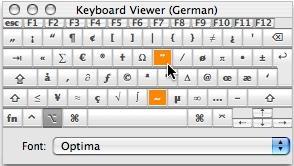
how to make symbols with keyboard

Making symbols with keyboard is very simple.
just check out the codes and use them.

Alt + 0153..... ™... trademark symbol

Alt + 0169.... ©.... copyright symbol

Alt + 0174..... ®... .registered trademark symbol

Alt + 0176 ...°....... .degree symbol

Alt + 0177 ...± ... .plus-or-minus sign

Alt + 0182 ...¶....... paragraph mark

Alt + 0190 ...¾...... fraction, three-fourths

Alt + 0215 .... ×..... multiplication sign

Alt + 0162... ¢...... the cent sign

Alt + 0161..... ¡...... upside down exclamation point

Alt + 0191..... ¿..... upside down question mark

Alt + 1.......... ☺... smiley fsce

Alt + 2 ......... ☻... black smiley face

Alt + 15........ ☼... sun

Alt + 12........ ♀.... female sign

Alt + 11....... ♂.... male sign

Alt + 6......... ♠..... spade sign

Alt + 5.......... ♣.... Club symbol

Alt + 3.......... ♥.... Heart

Alt + 4.......... ♦..... Diamond

Alt + 13........ ♪..... eighth note

Alt + 14........ ♫.... beamed eighth note

Alt + 8721.... ∑.... N-ary summation (auto sum)

Alt + 251...... √..... square root check mark

Alt + 8236..... ∞.... infinity

Alt + 24........ ↑..... up arrow

Alt + 25........ ↓..... down arrow

Alt + 26........ →... right pointing arrow

Alt + 27........ ←... left arrow

Alt + 18........ ↕..... up/down arrow

Alt + 29........ ↔... left right arrow
Read more

Thursday, October 11, 2012

Stop a restart process or shutdown in 3 steps

Some times we need to stop some restart process quickly.
In windows XP some times it gives auto restart warning and here is good solution for it.


1. Go to Start menu

2. Click on RUN

3. Enter the following command excluding hashcodes "shutdown -a"

its Done.
Read more

1 to 25 ways to speed windows not only defragment

Since defragging the disk won't do much to improve Windows XP performance, here are 25 suggestions that will.

Each can enhance the performance and reliability of your customers' PCs. Best of all, most of them will cost you nothing.

1.) To decrease a system's boot time and increase system performance, use the money you save by not buying defragmentation software -- the built-in Windows defragmenter works just fine -- and instead equip the computer with an Ultra-133 or Serial ATA hard drive with 8-MB cache buffer.

2.) If a PC has less than 512 MB of RAM, add more memory. This is a relatively inexpensive and easy upgrade that can dramatically improve system performance.

3.) Ensure that Windows XP is utilizing the NTFS file system. If you're not sure, here's how to check: First, double-click the My Computer icon, right-click on the C: Drive, then select Properties. Next, examine the File System type; if it says FAT32, then back-up any important data. Next, click Start, click Run, type CMD, and then click OK. At the prompt, type CONVERT C: /FS:NTFS and press the Enter key. This process may take a while; it's important that the computer be uninterrupted and virus-free.

The file system used by the bootable drive will be either FAT32 or NTFS. I highly recommend NTFS for its superior security, reliability, and efficiency with larger disk drives.

4.) Disable file indexing. The indexing service extracts information from documents and other files on the hard drive and creates a "searchable keyword index." As you can imagine, this process can be quite taxing on any system.

The idea is that the user can search for a word, phrase, or property inside a document, should they have hundreds or thousands of documents and not know the file name of the document they want. Windows XP's built-in search functionality can still perform these kinds of searches without the Indexing service. It just takes longer. The OS has to open each file at the time of the request to help find what the user is looking for.

Most people never need this feature of search. Those who do are typically in a large corporate environment where thousands of documents are located on at least one server. But if you're a typical system builder, most of your clients are small and medium businesses. And if your clients have no need for this search feature, I recommend disabling it.

Here's how: First, double-click the My Computer icon. Next, right-click on the C: Drive, then select Properties. Uncheck "Allow Indexing Service to index this disk for fast file searching." Next, apply changes to "C: subfolders and files," and click OK. If a warning or error message appears (such as "Access is denied"), click the Ignore All button.

5.) Update the PC's video and motherboard chipset drivers. Also, update and configure the BIOS. For more information on how to configure your BIOS properly, see this article on my site.

6.) Empty the Windows Prefetch folder every three months or so. Windows XP can "prefetch" portions of data and applications that are used frequently. This makes processes appear to load faster when called upon by the user. That's fine. But over time, the prefetch folder may become overloaded with references to files and applications no longer in use. When that happens, Windows XP is wasting time, and slowing system performance, by pre-loading them. Nothing critical is in this folder, and the entire contents are safe to delete.

7.) Once a month, run a disk cleanup. Here's how: Double-click the My Computer icon. Then right-click on the C: drive and select Properties. Click the Disk Cleanup button -- it's just to the right of the Capacity pie graph -- and delete all temporary files.

8.) In your Device Manager, double-click on the IDE ATA/ATAPI Controllers device, and ensure that DMA is enabled for each drive you have connected to the Primary and Secondary controller. Do this by double-clicking on Primary IDE Channel. Then click the Advanced Settings tab. Ensure the Transfer Mode is set to "DMA if available" for both Device 0 and Device 1. Then repeat this process with the Secondary IDE Channel.

9.) Upgrade the cabling. As hard-drive technology improves, the cabling requirements to achieve these performance boosts have become more stringent. Be sure to use 80-wire Ultra-133 cables on all of your IDE devices with the connectors properly assigned to the matching Master/Slave/Motherboard sockets.

A single device must be at the end of the cable; connecting a single drive to the middle connector on a ribbon cable will cause signaling problems. With Ultra DMA hard drives, these signaling problems will prevent the drive from performing at its maximum potential. Also, because these cables inherently support "cable select," the location of each drive on the cable is important. For these reasons, the cable is designed so drive positioning is explicitly clear.

10.) Remove all spyware from the computer. Use free programs such as AdAware by Lavasoft or SpyBot Search & Destroy. Once these programs are installed, be sure to check for and download any updates before starting your search. Anything either program finds can be safely removed. Any free software that requires spyware to run will no longer function once the spyware portion has been removed; if your customer really wants the program even though it contains spyware, simply reinstall it. For more information on removing Spyware visit this Web Pro News page.

11.) Remove any unnecessary programs and/or items from Windows Startup routine using the MSCONFIG utility. Here's how: First, click Start, click Run, type MSCONFIG, and click OK. Click the StartUp tab, then uncheck any items you don't want to start when Windows starts. Unsure what some items are? Visit the WinTasks Process Library. It contains known system processes, applications, as well as spyware references and explanations. Or quickly identify them by searching for the filenames using Google or another Web search engine.

12.) Remove any unnecessary or unused programs from the Add/Remove Programs section of the Control Panel.

13.) Turn off any and all unnecessary animations, and disable active desktop. In fact, for optimal performance, turn off all animations. Windows XP offers many different settings in this area. Here's how to do it: First click on the System icon in the Control Panel. Next, click on the Advanced tab. Select the Settings button located under Performance. Feel free to play around with the options offered here, as nothing you can change will alter the reliability of the computer -- only its responsiveness.

14.) If your customer is an advanced user who is comfortable editing their registry, try some of the performance registry tweaks offered at Tweak XP.

15.) Visit Microsoft's Windows update site regularly, and download all updates labeled Critical. Download any optional updates at your discretion.

16.) Update the customer's anti-virus software on a weekly, even daily, basis. Make sure they have only one anti-virus software package installed. Mixing anti-virus software is a sure way to spell disaster for performance and reliability.

17.) Make sure the customer has fewer than 500 type fonts installed on their computer. The more fonts they have, the slower the system will become. While Windows XP handles fonts much more efficiently than did the previous versions of Windows, too many fonts -- that is, anything over 500 -- will noticeably tax the system.

18.) Do not partition the hard drive. Windows XP's NTFS file system runs more efficiently on one large partition. The data is no safer on a separate partition, and a reformat is never necessary to reinstall an operating system. The same excuses people offer for using partitions apply to using a folder instead. For example, instead of putting all your data on the D: drive, put it in a folder called "D drive." You'll achieve the same organizational benefits that a separate partition offers, but without the degradation in system performance.

Also, your free space won't be limited by the size of the partition; instead, it will be limited by the size of the entire hard drive. This means you won't need to resize any partitions, ever. That task can be time-consuming and also can result in lost data.

19.) Check the system's RAM to ensure it is operating properly. I recommend using a free program called MemTest86. The download will make a bootable CD or diskette (your choice), which will run 10 extensive tests on the PC's memory automatically after you boot to the disk you created. Allow all tests to run until at least three passes of the 10 tests are completed. If the program encounters any errors, turn off and unplug the computer, remove a stick of memory (assuming you have more than one), and run the test again. Remember, bad memory cannot be repaired, but only replaced.

20.) If the PC has a CD or DVD recorder, check the drive manufacturer's Web site for updated firmware. In some cases you'll be able to upgrade the recorder to a faster speed. Best of all, it's free.

21.) Disable unnecessary services. Windows XP loads a lot of services that your customer most likely does not need. To determine which services you can disable for your client, visit the Black Viper site for Windows XP configurations.

22.) If you're sick of a single Windows Explorer window crashing and then taking the rest of your OS down with it, then follow this tip: open My Computer, click on Tools, then Folder Options. Now click on the View tab. Scroll down to "Launch folder windows in a separate process," and enable this option. You'll have to reboot your machine for this option to take effect.

23.) At least once a year, open the computer's cases and blow out all the dust and debris. While you're in there, check that all the fans are turning properly. Also inspect the motherboard capacitors for bulging or leaks. For more information on this leaking-capacitor phenomena, you can read numerous articles on my site.

24.) Key things to save your computer : Defragment, DiskCheck, Error Cleaning, Antivirus, Memory Scanning etc.

25.) Scan every external disk you connect. There are many autorun viruses which may bipass antivirus if not scanned.


Read more

Thursday, September 27, 2012

Hard drive gone bad and slow - trick is here

The most common problems originate from corruption of the master boot record, FAT, or directory. Those are soft problems which can usually be taken care of with a combination of tools like Fdisk /mbr to refresh the master boot record followed by a reboot and Norton disk doctor or Spinneret.

The most common hardware problems are a bad controller, a bad drive motor, or a bad head mechanism.

1. Can the BIOS see and identify the hard drive correctly? If it can't, then the hard drives onboard controller is bad.

2. Does the drive spin and maintain a constant velocity? If it does, that's good news. The motor is functioning.

3. If the drive surges and dies, the most likely cause is a bad controller (assuming the drive is cool). A gate allowing the current to drive the motor may not be staying open. The drive needs a new controller.

4. Do you hear a lot of head clatter when the machine is turned on and initialized (but before the system attempts to access the hard drive). Head clatter would indicate that the spindle bearings are sloppy or worn badly. Maybe even lose and flopping around inside.

5. There is always the possibility that the controller you are using in the machine has gone south.

1. If the drive spins, try booting to the A> prompt, run Fdisk and check to see if Fdisk can see a partition on the hard drive. If Fdisk can see the partition, that means that it can access the drive and that the controller electronics are functioning correctly. If there is no head clatter, it may be just a matter of disk corruption which commonly occurs when a surge hits you machine and overwhelms the power supply voltage regulator. It commonly over whelms the system electronics allowing an EM pulse to wipe out the master boot record, file allocations table, and primary directory. Fdisk can fix the master boot record and Norton Disk Doctor can restore the FAT and Directory from the secondaries.

2. The drive spins but Fdisk can't see it. Try the drive in another system and repeat the test to confirm that Fdisk can't read through the drives onboard controller. If it sees it in another system, then your machines hard drive interface is bad. You can try an upgraded or replacement controller card like a Promise or CMD Technologies (there are others) in you machine after disabling the integrated controller in the BIOS, but if the integrated controller went south, it may just be symptomatic of further failures and you'd be wise to replace the motherboard. Trying the drive in another machine also eliminates the variable that your machines 12 volt power output being bad

3. If you get head clatter but a constant velocity on the drive motor (no surging), you might try sticking the hard drive in the freezer for about 12 hours. This is an old trick from back in the days of the MFM/ESDI driver era. This can cause the drive components to shrink enough to make the track marker align with the tracks. We don't see that kind of platter spindle wear much anymore, but back in the old days, the balancing and bearings weren't as good. Still, under the right circumstances, it might help. It would depend on how old the drive is and how many hours of wear have occurred. You have to be quick to get your info off the drive when it works. Back then, the drives were much smaller, so there wasn't so much to copy. So, go after the important data first.

4. The drive doesn't spin. Either the onboard controller is bad or the motor is bad (assuming you did try the drive in another machine). It's time to hit the net and local independent shops to see if you can locate another drive of the same make and model that's good. Since the drive is probably an older drive and no longer in distribution, your best bet is to find an identical used drive. If you know someone with the same make and model, you might be wise to try and persuade them to sell you their drive with an offer of providing them with a free upgraded drive. If you can locate an identical drive, start with the controller replacement ... this is the simplest and least invasive. If swapping the controller doesn't produce the desire result, you can tear into the drive and swap the motors. While you have both drive opened up to accomplish this, scrutinize the platters, heads and armatures. You might even hook the drive up and power it from a system with both drives attached. This way, you could see anything that deviates between the actions of both drives when they are initialized. Swapping patters is unlikely to produce any positive result. They are a balanced system like the tires on your car and I suspect that the balance will be different for each drive as will other variables.

5. There's always Ontrack Corp. who will attempt to recoup your info starting at $500 and going up from there. They don't fix and return the drive either.

If the info is all that important to you, I would seek some professional and experience technician in your locality who makes his living from servicing and building computer systems ... not just selling them. If you have had much experience salvaging information from bad hard drives, your likelihood of success is low. In the case of soft corruption, all utilities have their eccentricities. Often times, Norton Disk Doctor will go too far (if you let it). It's wise to just let those utilities small steps and then have a look at the drive and see if you can copy it off. Norton will go so far as to rename directories and files, and even delete them or break them up into fragments which are useless. _________________
Read more

Wednesday, September 19, 2012

Rename a Series of Files in windows


When you connect your digi cam to your computer you see many files named in series like md101, md102 and so on.
You can do this thing by yourself on other files too.

To do this

• Open any folder containing files that you want to rename.

• Select the files you want to rename.
If the files you want are not adjacent in the file list, press and hold Ctrl, and then click each item to select it.

• On the File menu, click Rename.

• Type the new name, and then press ENTER.

• All of the files in the series will be named in sequence using the new name you type. For example, if you type ABCD, the first will be named ABCD and subsequent files in the series will be named ABCD(1), ABCD(2), and so on.

• To specify the starting number for the series, type the starting number in parentheses after the new file name.

The files in the series will be numbered in
sequence starting with the number you type.
For example, if you type ABCD(10), the other files will be named ABCD(11), ABCD(12), and so on.
Read more

Thursday, August 23, 2012

TURN ON UR PC IN JUST 10 SECONDS


Aright so u want to know how to turn the pc on in 10 seconds (may vary)Aright here what u have to do to turn ur pc on in 10 seconds

Click on the start button then press R it will take u to Run well go to run
n type Regedit
press enter
this will open Registery Editor
now look for the key

HKEY_LOACAL_MECHINE\SYSTEM\CurrentControlSet\Control\ContentIndex

now there find the Key Called
"Startup Delay"
Double Click On It
Now where its Base
Click Decimal
Now its Default Value Is 4800000 (75300:hexadecimal)
Change The Value To 40000
here u go u have done it
now close the Registery Editor and Restart Your Computer
Read more

How to remove the shortcut arrow from the desktop ?

Open Regedit and navigate to the following key:

HKEY_LOCAL_MACHINE \ SOFTWARE \ Microsoft \ Windows \ CurrentVersion \ Explorer \ Shell Icons
Backup the key. More information.
In the right-pane, create a new String value named "29"
Double-click 29 and set its data to:

C:\Windows\System32\shell32.dll,50 (an empty icon)
Close Registry Editor.

Now,

Right-click Desktop, choose Properties
Click the Appearance Tab.

Click Advanced button.

Choose Icon from the drop-down list

Set it's size to 31 and press OK, OK.

The changes will be applied now. Repeat the above steps and then set the Icon size back to 32 (defaults). The above steps are required to force Windows to redraw the icons
Read more

Hacking windows SEND TO MENU

I know this is a very simple thing but the problem, as like many other issues, is the ignorance about it.

How often do you copy songs from a CD? Or some photos from a CD?

What do you do? You select the required files and do a CTRL –C. Open the destination folder and do a CTRL-V. Here is something you can benefit time from. Customize your SEND TO MENU.

This sounds simple and you can do it in less than sixty seconds.
You can create your own BASKET.

First you’ll need access to hidden files. So change your view settings to make all hidden files visible.
Tools -> folder options -> view (tab) and select the show hidden files and folders.
go to parent drive:/documents and settings/(user name)/send to

Open up my computer and locate your most used folders.

Create a shortcut of the most used folders in SEND TO FOLDER.You can do this in a number of ways.

Right click -> send to desktop(create shortcut) and move the shortcut from the desktop to the SEND TO FOLDER

Copy the most used folder and go to SEND TO FOLDER and right click -> paste shortcut.

Also remember to rename the shortcuts to send to videos or send to potos. We don’t need confusion when we use the same later.

5. DONE
Read more

Can u Delete Recycle Bin?

1 thing is 4 sure, delete option can be added 2 recycle bin.
the old registry thing will work out.
* launch the registry. [run regedit]
* open HKEY_CLASSES_ROOT\CLSID\{645FF040-5081-101B-9F08-00AA002F954E}\ShellFolder
* to add a rename and delete option, change the Dword attribute to 70 01 00 20
* refresh and reboot the system.you are done.
Read more

Deleting System Options from the Start menu

You can actually remove the Find and Run options from the start menu by performing a simple registry hack. Again like always Launch the registry editor and scroll down to the below key:
HKEY_CURRENT_USER\Software\Microsoft\Windows\CurrentVersion\Policies\Explorer Right-

click on the right pane and select New, DWORD Value. Name it NoFind.(To remove the RUN option name it NoRun).
Double-click the newly create DWORD to edit it's value and enter 1 as its value. This will disable the FIND option of the Start Menu and will also disable the default Shortcut key(F3 for Find.)

To restore the Run or find command modify the value of the DWORD to 0 or simply Delete the DWORD value.
Read more

Disabling Display of Drives in My Computer

This is yet another trick you can play on your geek friend.

To disable the display of local or networked drives when you click My Computer

go to : HKEY_CURRENT_USER\Software\Microsoft\Windows\CurrentVersion\Policies\Explorer

Now in the right pane create a new DWORD item and name it NoDrives. Now modify it's value and set it to 3FFFFFF (Hexadecimal) Now press F5 to refresh.

When you click on My Computer, no drives will be shown. To enable display of drives in

My Computer, simply delete this DWORD item. It's .reg file is as follows: REGEDIT4 [HKEY_CURRENT_USER\Software\Microsoft\Windows\CurrentVersion\Policies\Explore r] "NoDrives"=dword:03ffffff
Read more

Saturday, August 11, 2012

how to SpeedUP internet surfing

-Go 2 Run

-type gpedit.msc

->administrative Template

->Computer configuration

->enableoption

->change value to 0

restart computer done.
Read more

Thursday, August 09, 2012

UNINSTALL THE PROGRAMS WITHOUT USING "add and remove programs"

follow the procedure

> open run command .

> type "regedit" without quotes.

> go to HKEY_LOCAL_MACHINE\SOFTWARE\Microsoft\Windows\CurrentVersion\Uninstall

> click on any one of them and check "display name".
display name tells the installed program .

> delete the folder of the program which you want to
uninstall .
Read more

Get a Power Efficiency Report in windows 7

Have a laptop and want to get more battery life out of it? Windows 7 includes a hidden built-in tool that will examine your laptop's energy use and make recommendations on how to improve it.

To use it:

> Run a command prompt as an administrator. To do this,
type cmd in the search box, and when the cmd
icon appears, right-click it and choose
"Run as administrator."

> At the command line, type in the following:
powercfg -energy -output \BANDIKISHORE\Energy_Report.html
where \BANDIKISHORE represents the folder where you
want the report to be placed.

Example: powercfg -energy -output C:\Energy_Report.html
It lets the file to be created in C: drive

> For about a minute, Windows 7 will examine the
behavior of your laptop. It will then analyze
it and create a report in HTML format in the
folder you specified. Double-click the
file, and you'll get a report.

follow its recommendations for ways to improve power performance
Read more

how to Create Your own Virtual Drive in windows

> Go to start
> run
> Type cmd
> subst k: c:\FOLDERNAME

Check your my computer, new drive should be shown.
For removing, type

> subst k: /d

Basically virtual drive k assign a path to the
folder FOLDERNAME.
Read more

Put Folders, Files To "Send To"

Go to the path in explorer bar:

C:\Documents and Settings\user\SendTo

Remember SendTo folder is hidden by default. So

firstly you would have to apply the permission Show
hidden files and folders.

Paste shortcut of any folder or file.
Read more